

How to Upgrade GX6605S Receiver with RS232 Method
Quick Note: RS232 upgrade is the safest method to repair, unbrick, or install new firmware on your GX6605S receiver. Even if your device is stuck on boot or showing software error, RS232 can restore it successfully.
Introduction
If your GX6605S receiver is not working properly or you want to install new software, the RS232 upgrade method is the most reliable way to flash your device. In this guide, we will explain step by step how to upgrade GX6605S receiver with the RS232 method.
Requirements
- GX6605S Receiver

- RS232 Connector (Female to Female)

- RS232 Cable (Female to Female)

- PC or Laptop with COM Port / USB-to-COM Converter

- GX6605S Loader Tool (Download below)

- RS232 Driver Download Here
- Correct Firmware (.bin file)


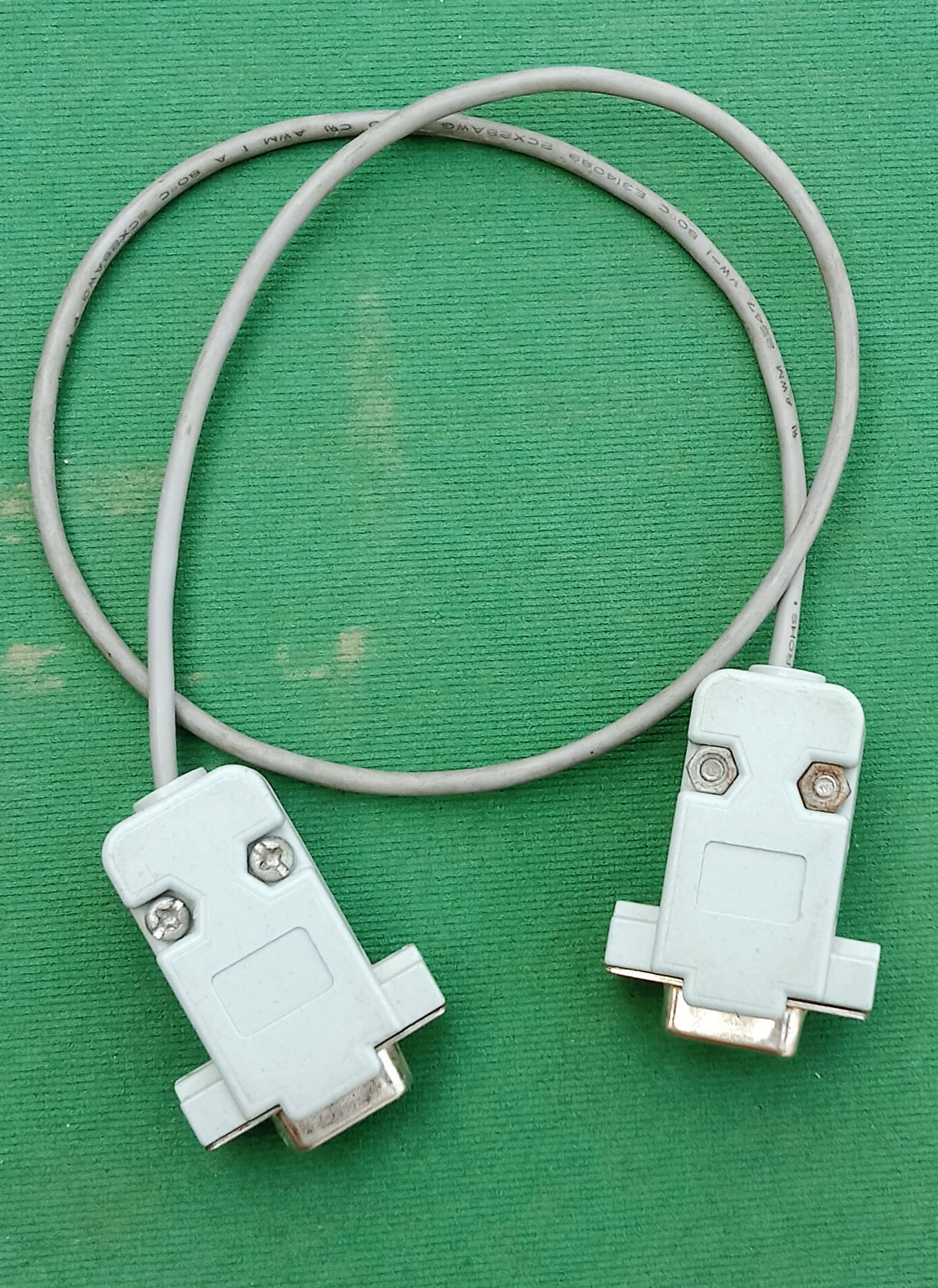
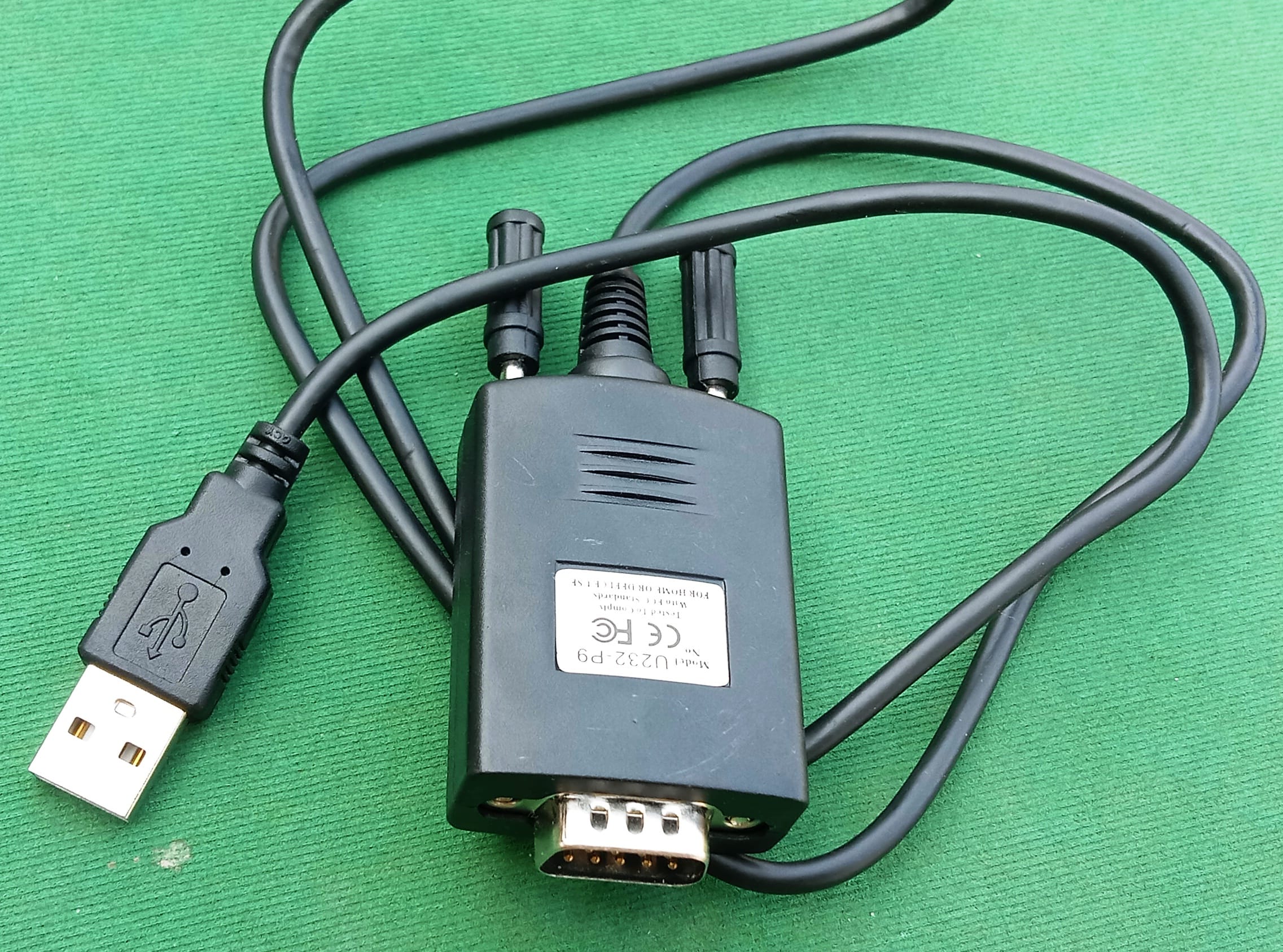
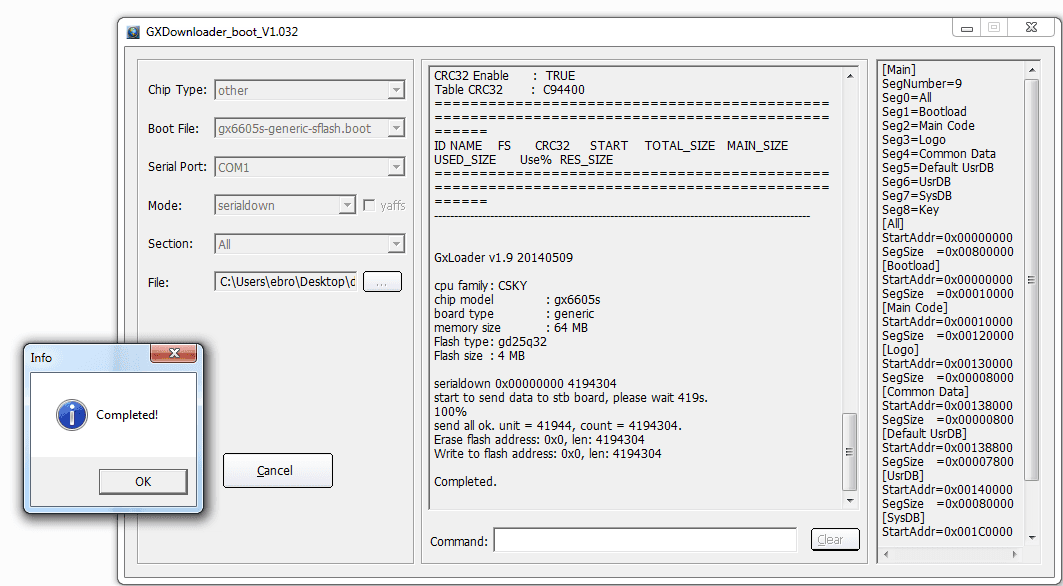
Download GX6605S Loader Tools & Driver
⚠️ Important Download Notice
Dear visitors, the direct Loader Files previously shared on this website were reported as containing suspicious viruses. To keep our website safe, clean, and fully compliant with Google policies, we cannot provide direct Mediafire links here anymore.
✅ All official and safe download links for the loader models listed below are now available only in the YouTube Video Description.
📥 Please open the related YouTube video and check the description section to download all loader files safely. 👉 Watch Video Here
Download Latest Firmware According to Your GX6605S Model
Step-by-Step Upgrade Guide
Step 1: Connect the Receiver
Use the RS232 cable to connect your GX6605S receiver with your PC. Make sure the receiver is powered off.
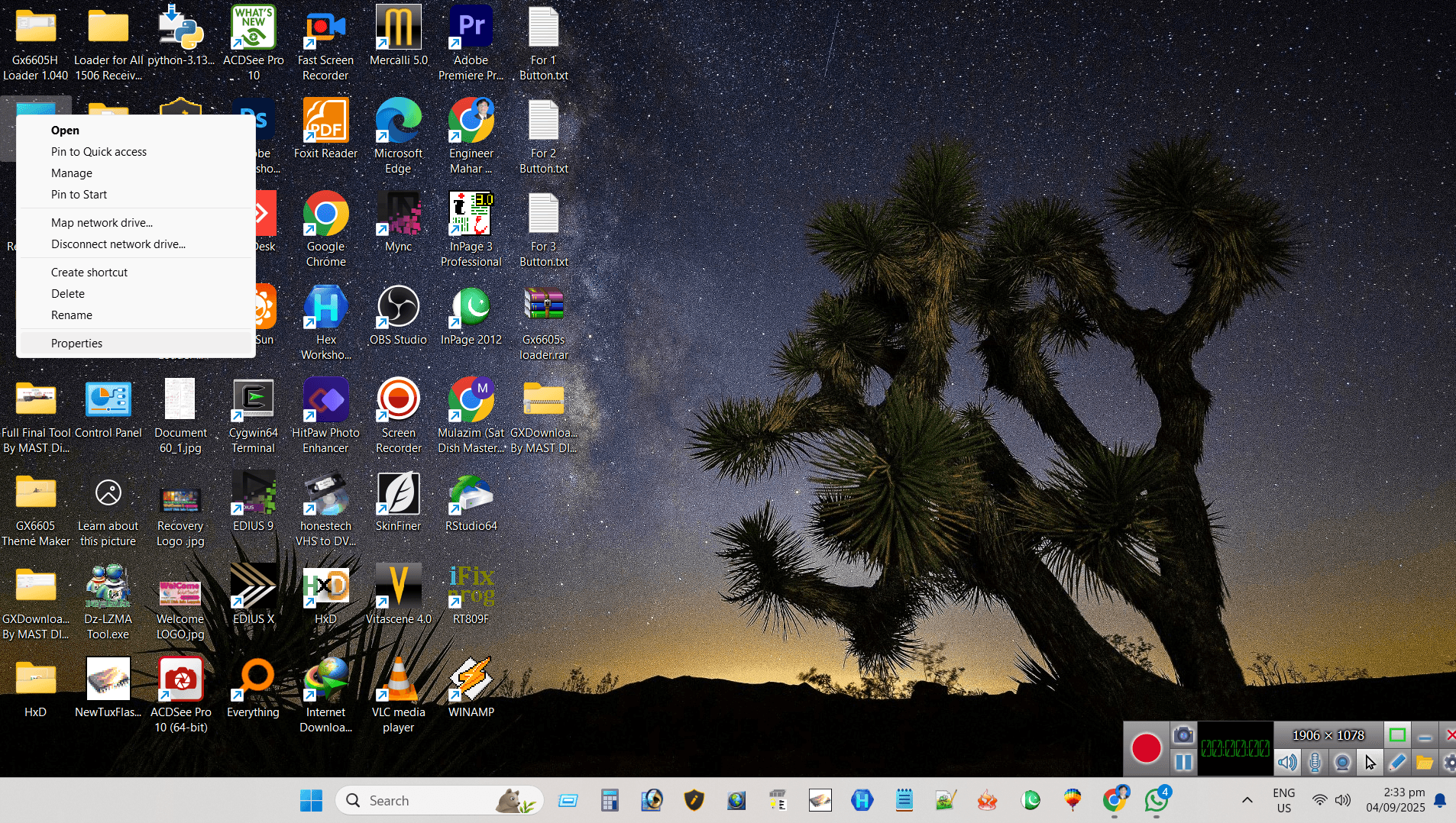
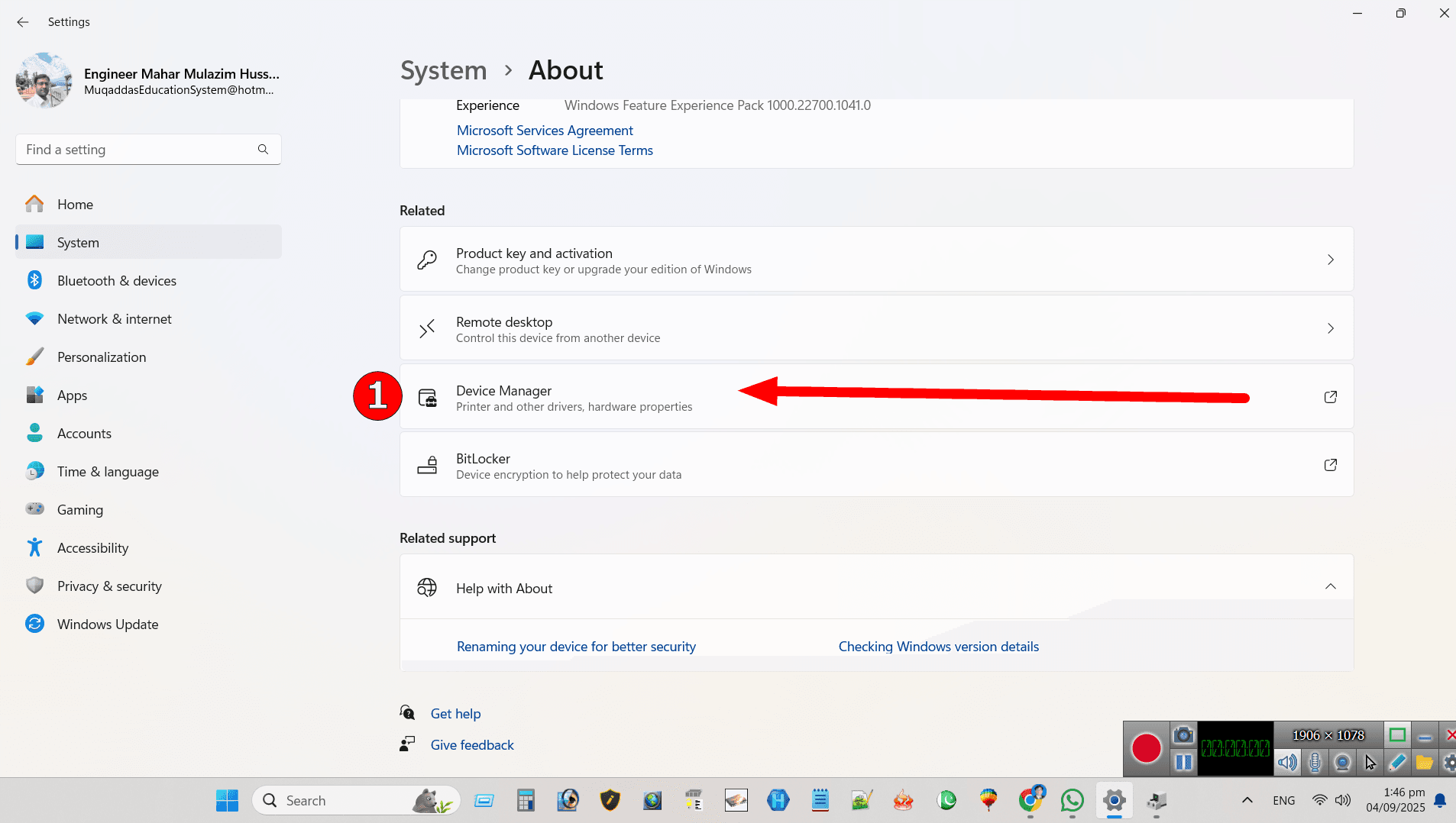
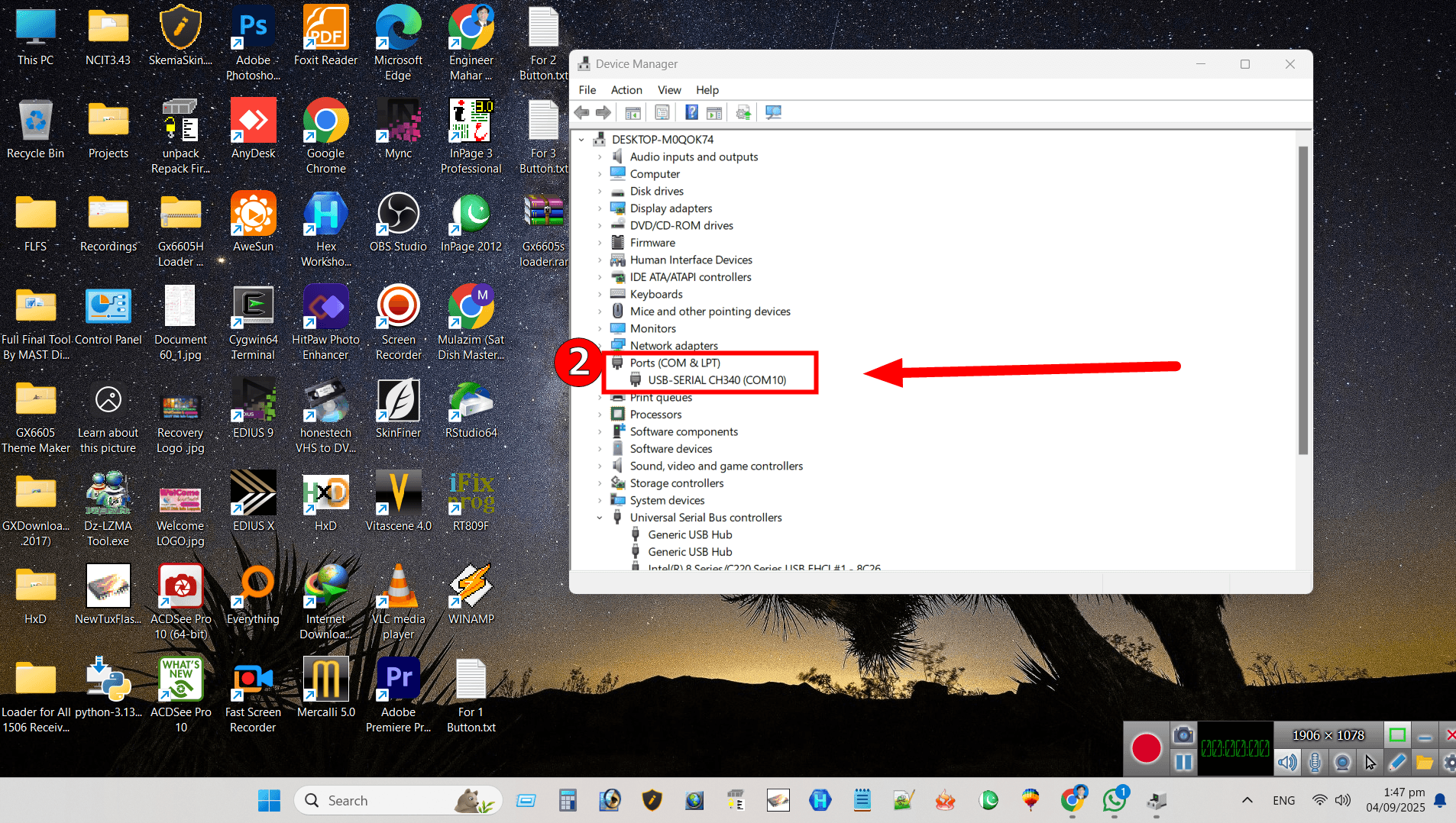
Step 2: Open the Loader Tool
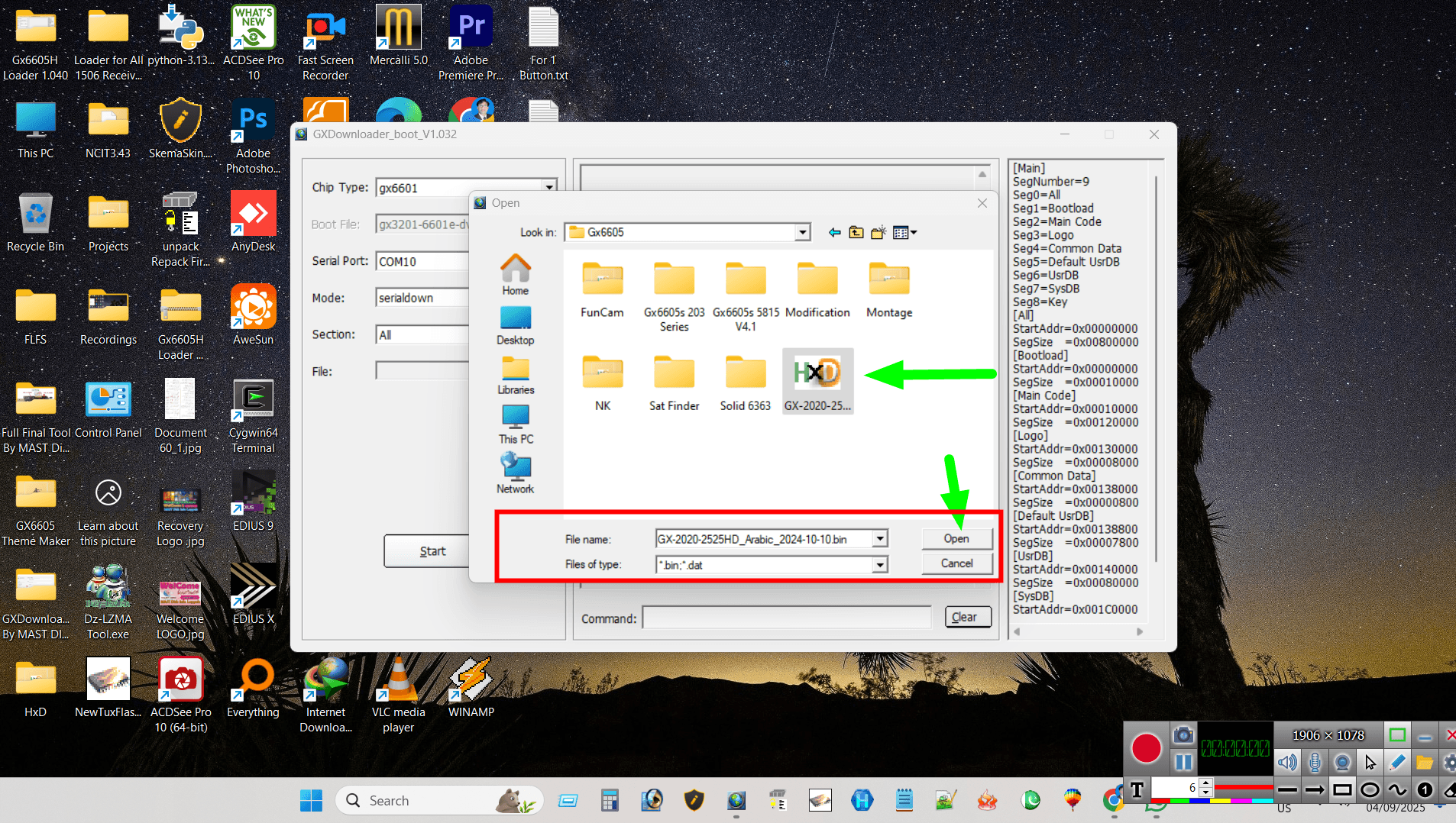
Run the loader software on your PC and select the correct COM port. Then click on Browse to choose your GX6605S firmware file (.bin).
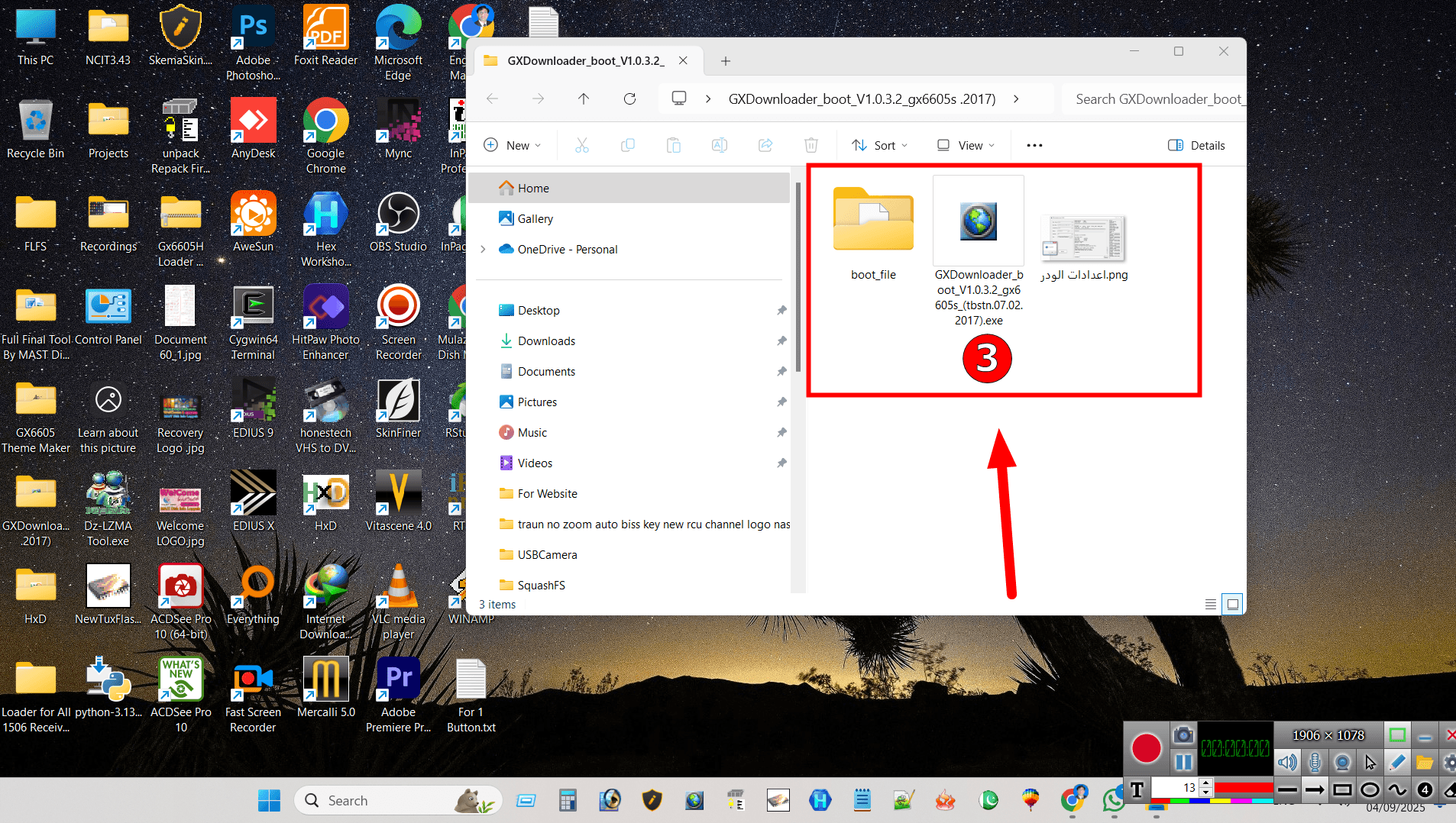
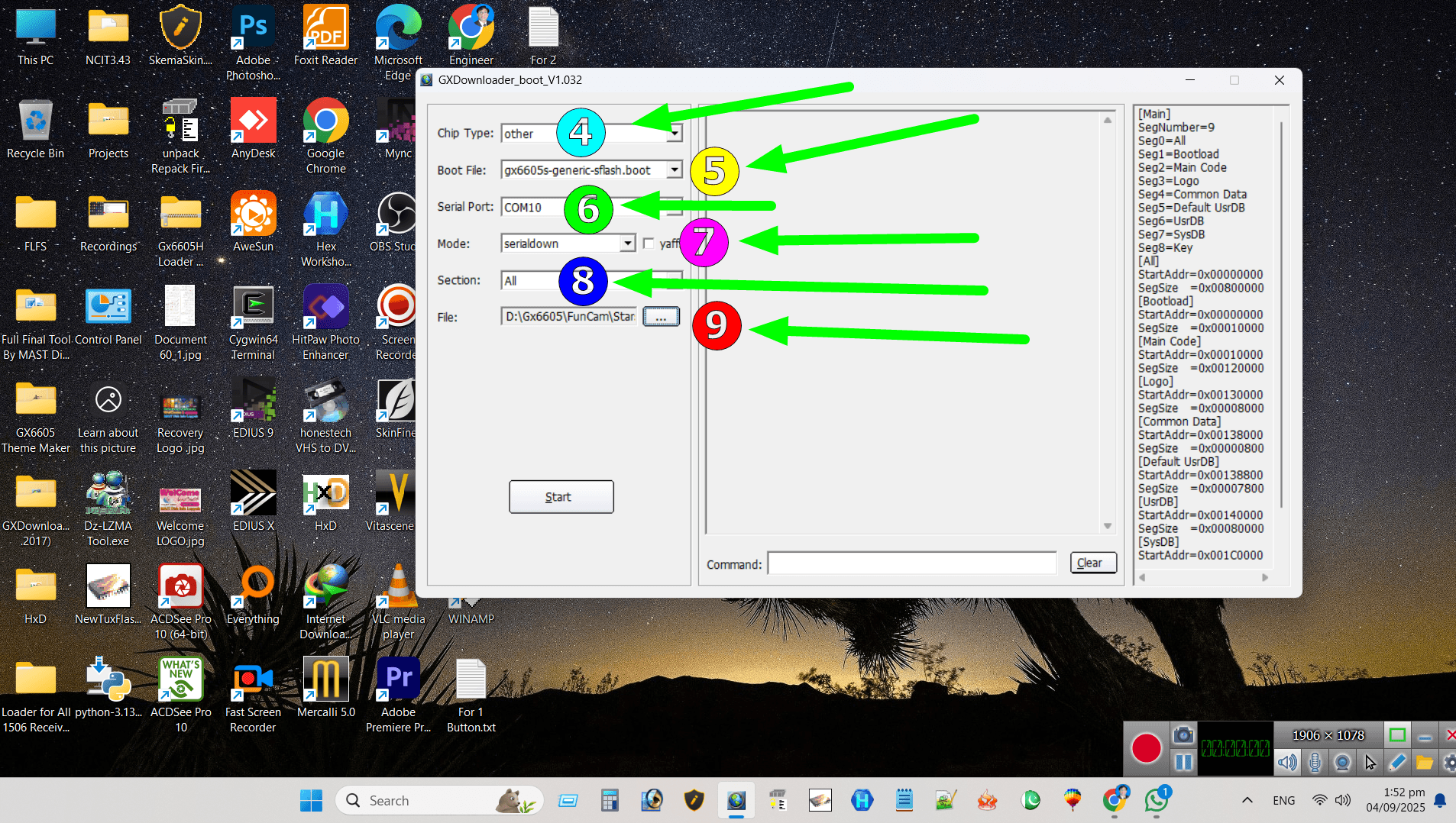
Step 3: Start the Upgrade
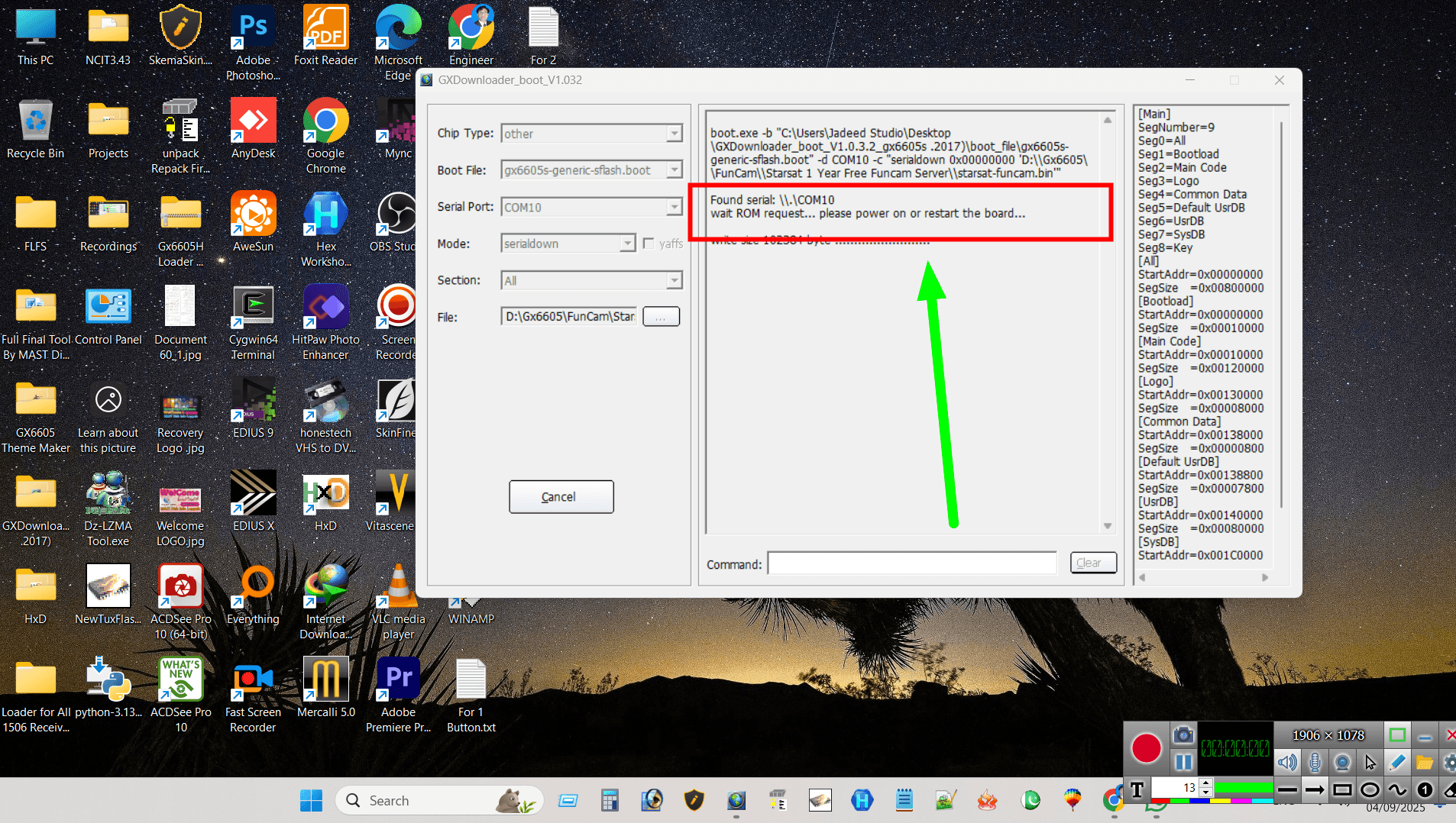
Click on the Download or Start button in the loader tool. Now switch on your GX6605S receiver. The upgrade process will begin automatically.

Step 4: Finish and Restart
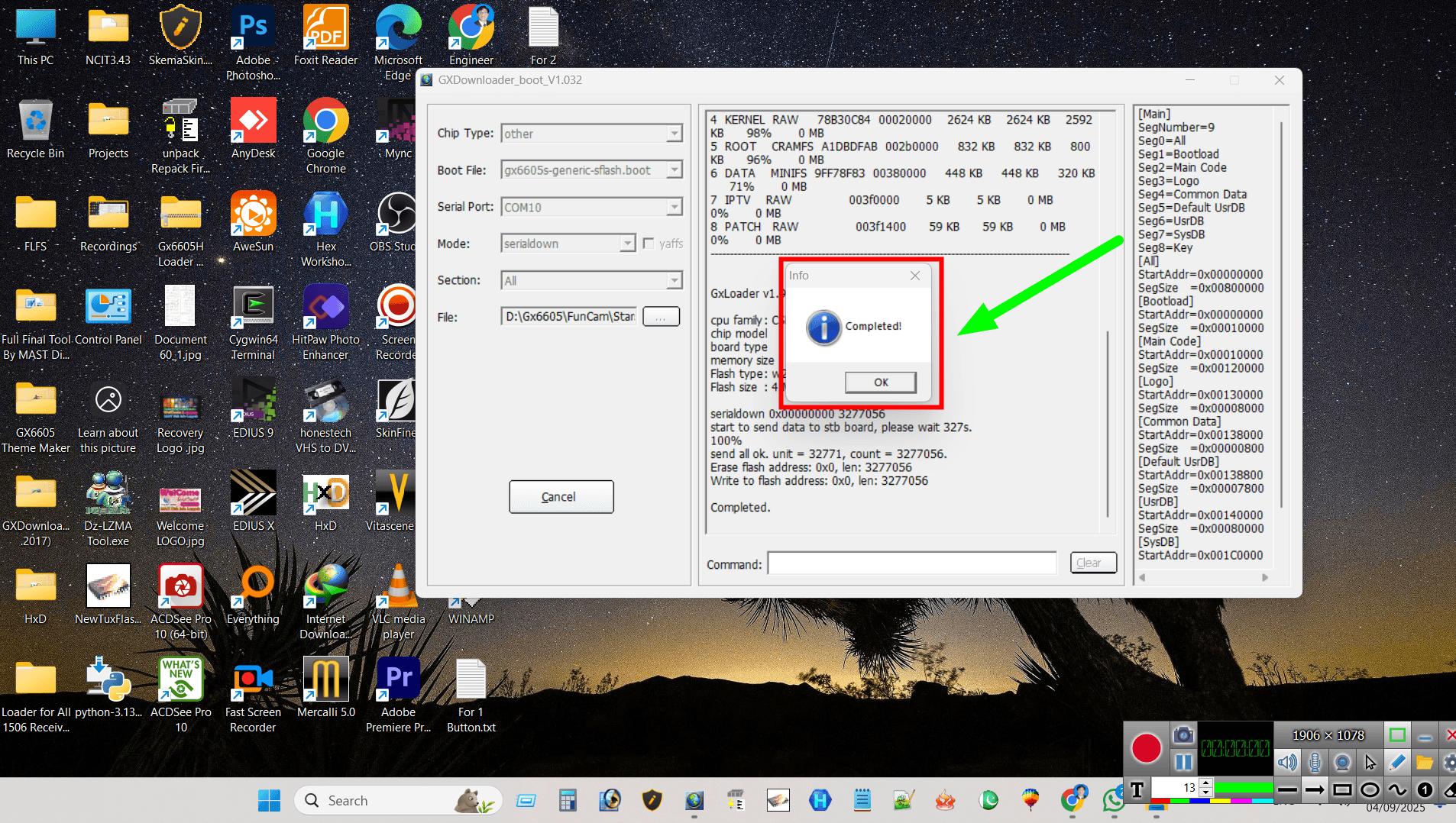
Once the loader shows Upgrade Complete, turn off and turn on your receiver. Your GX6605S is now successfully upgraded.
Upgrade with RT809F Programmer
GX6605S software can also be upgraded using the RT809 programmer. Watch the video tutorial below for the complete process.

Note: Videos are embedded via YouTube LYTE for improved performance.
Video Tutorial: Upgrade via RS232 with Serial Down Option

Note: Videos are embedded via YouTube LYTE for improved performance.
Video Tutorial: Upgrade via RS232 with USB Down Option

Note: Videos are embedded via YouTube LYTE for improved performance.
Red Light Problem Fix Using Professional Method For Any GX6605S

Note: Videos are embedded via YouTube LYTE for improved performance.
Frequently Asked Questions (FAQ)
1. What if the loader does not detect my receiver?
Check the COM port settings, cable connection, and make sure the receiver is powered off before starting the upgrade.
2. Can I use USB instead of RS232?
No, for GX6605S the safest way is RS232. However, you can use a USB-to-COM converter if your laptop does not have a COM port.
3. Where can I get the correct firmware?
You can download the firmware from trusted satellite forums, official websites, or directly from our software pages:
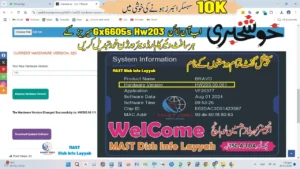
- GX6605S HW203 Software
- GX6605S 5815 V4.1 Software
- Solid 6363 Software
- GX6605S Funcam Software
- GX6605S NK & ME Software
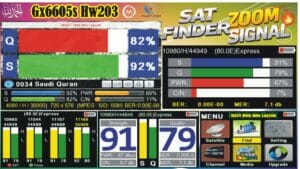
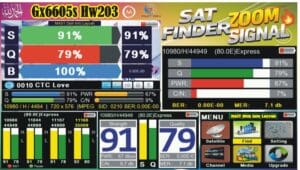
- GX6605S SatFinder Software
⚠️ Important Warning: Always use the correct firmware for your exact GX6605S model. Installing the wrong firmware may permanently damage (dead) your receiver.








1 thought on “How to Upgrade GX6605S Receiver with RS232 Method – Step by Step Guide 2025”